Five fields. Five little asterisks. How hard can it be?
Hard enough that most sysadmins have a story. A report that was supposed to go out at 3 AM landed at 3 PM, because someone wrote 0 15 and meant 0 3. A cleanup script meant to run once a day that ran every minute and quietly filled a disk. A “first of the month” job that fired on every Monday as well, because of a quirk nobody warned them about.
Cron syntax looks deceptively simple, and that’s exactly why mistakes slip through. You squint at */5 * * * *, decide it looks right, save the file, and move on. Then production tells you otherwise.
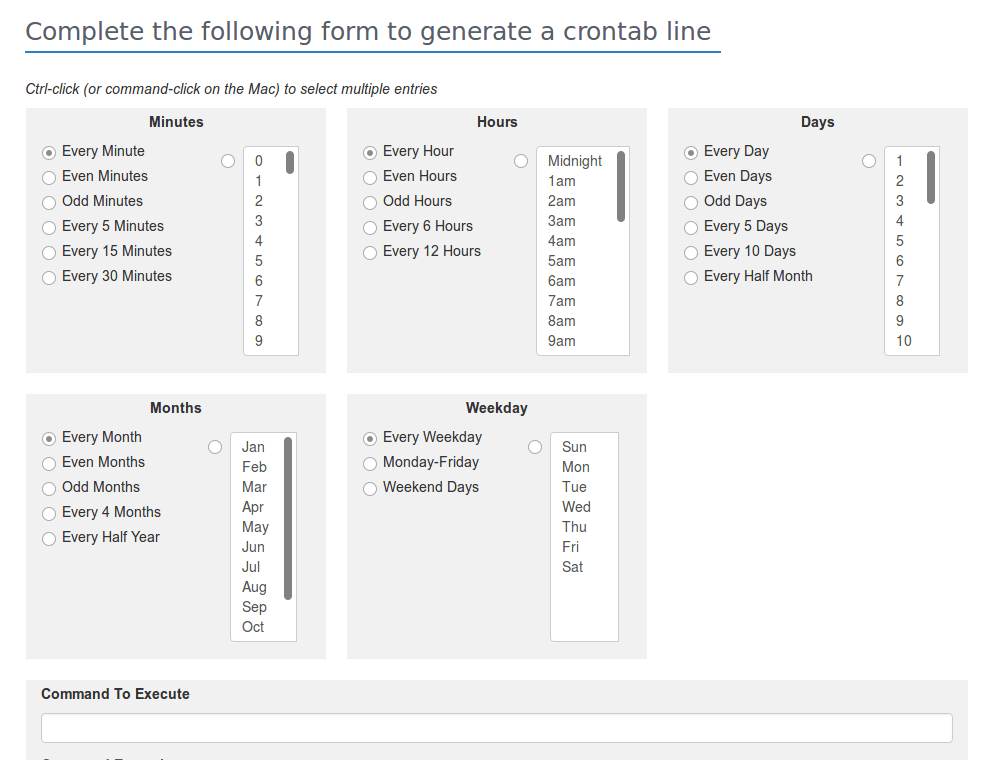
A good cron generator closes that gap. It lets you pick a schedule visually, shows you the expression, and translates it back into plain English so you can check it before it touches a real server. This guide covers the syntax itself, how to use a generator properly, how to test jobs on Ubuntu, and the production habits that keep automated scheduled tasks from turning into 2 AM pages.
Cron syntax explained: the five fields
A crontab line has five time fields followed by the command:
┌───────────── minute        (0-59)
│ ┌─────────── hour          (0-23)
│ │ ┌───────── day of month  (1-31)
│ │ │ ┌─────── month         (1-12 or jan-dec)
│ │ │ │ ┌───── day of week   (0-7 or sun-sat; 0 and 7 are both Sunday)
│ │ │ │ │
* * * * * command-to-run| Field | Allowed values | Notes |
|---|---|---|
| Minute | 0 to 59 | |
| Hour | 0 to 23 | 24-hour clock, no AM/PM |
| Day of month | 1 to 31 | |
| Month | 1 to 12 | Names like jan also work |
| Day of week | 0 to 7 | 0 and 7 both mean Sunday |
The four special characters
*means every value.* * * * *runs every minute.,lists values.0 8,20 * * *runs at 08:00 and 20:00.-sets a range.0 9 * * 1-5runs at 09:00 Monday to Friday./sets a step.*/15 * * * *runs every 15 minutes.
Shortcuts
Most cron implementations also accept readable aliases: @hourly, @daily, @weekly, @monthly, @yearly, and @reboot. They’re handy, but they don’t give you control over the exact time, so for anything precise, write the full expression.
Three gotchas that catch everyone
1. Day of month and day of week combine with OR, not AND. If you set both fields to something other than *, cron runs the job when either one matches. So 0 0 1 * 1 doesn’t mean “the first of the month, if it’s a Monday.” It means “the first of the month, and also every Monday.” If you need the AND behavior, run the job daily and check the date inside your script.
2. Steps don’t carry across boundaries. */7 * * * * looks like “every 7 minutes,” but it fires at minutes 0, 7, 14, and so on up to 56, then resets to 0 at the top of the next hour. That’s a 4-minute gap, not 7. Steps only line up cleanly when they divide the range evenly (5, 10, 15, 20, 30 for minutes).
3. The percent sign is special. In a crontab command, an unescaped % is treated as a newline. If you use date +%F inside a crontab, write date +\%F.
Why use a visual cron generator
Because humans are bad at reading five numbers and mentally converting them into a schedule. A crontab expression generator removes that step. You choose “every weekday at 9:00,” and it produces 0 9 * * 1-5. Paste an existing expression in and it tells you in plain English what it actually does.
The real value isn’t convenience. It’s catching mistakes before they ship:
- Syntax errors. A stray space or missing field silently breaks a line, or worse, makes it mean something else.
- Off-by-one thinking. Is Sunday 0 or 7? Is the first month 0 or 1? The generator knows.
- Preview of next runs. Most tools show the next five or ten run times, which exposes a wrong schedule instantly.
Any crontab generator online works for drafting. Just don’t treat it as the final word on timing, because the tool doesn’t know your server’s settings.
Timezones: the quiet problem
Cron runs on the server’s local time, and a generator has no idea what that is. A schedule you tested as “03:00” in your browser might run at 03:00 UTC, 03:00 Eastern, or whatever the box happens to be set to.
Check it on the server:
bash
timedatectl
date
For servers, UTC is the least painful choice, with one exception worth knowing: if the server uses a local timezone with daylight saving, jobs scheduled inside the skipped or repeated hour can run twice or not at all. Per-job timezone variables aren’t supported by every cron version (Ubuntu’s default cron is one where you shouldn’t count on it), so keep servers on UTC and convert in your head, or in your docs.
Quick reference: common cron schedules
| Schedule | Expression |
|---|---|
| Every minute | * * * * * |
| Every 5 minutes | */5 * * * * |
| Every 15 minutes | */15 * * * * |
| Every hour (on the hour) | 0 * * * * |
| Every 6 hours | 0 */6 * * * |
| Every night at midnight | 0 0 * * * |
| Every day at 3:00 AM | 0 3 * * * |
| Twice a day (08:00 and 20:00) | 0 8,20 * * * |
| Weekdays at 9:00 AM | 0 9 * * 1-5 |
| Every Sunday at 2:30 AM | 30 2 * * 0 |
| First day of every month, midnight | 0 0 1 * * |
How to schedule a cron job on Linux, step by step
Here’s the full workflow on an Ubuntu server, from script to verified run.
1. Write the script and make it executable
bash
mkdir -p ~/bin
nano ~/bin/daily-report.sh
bash
#!/bin/bash
set -euo pipefail
echo "Report started: $(date -u +%FT%TZ)"
# your real work goes here
echo "Report finished: $(date -u +%FT%TZ)"
bash
chmod +x ~/bin/daily-report.shUse absolute paths inside the script. Cron doesn’t run in your home directory by default.
2. Test it the way cron will run it
This is the step most people skip. Cron runs with a bare-bones environment, so a script that works in your terminal can fail under cron. Simulate it:
bash
env -i SHELL=/bin/sh PATH=/usr/bin:/bin /home/youruser/bin/daily-report.shIf it breaks here, it would have broken under cron too, and now you’ve found out without waiting for the schedule.
3. Generate the expression
Say you want it every day at 3:00 AM server time. Your cron generator gives you:
0 3 * * *Check the “next runs” preview against the server’s actual timezone.
4. Add it to your crontab, with logging
bash
crontab -e0 3 * * * /home/youruser/bin/daily-report.sh >> /home/youruser/logs/daily-report.log 2>&1The >> file 2>&1 part appends normal output and errors to a log. Without it, failures vanish. Make sure the log directory exists and your user can write to it. (Writing to /var/log as a non-root user usually fails, so use a folder in your home directory or set up a proper log file with the right ownership.)
Also make sure the crontab ends with a newline. Some cron versions ignore a last line without one.
5. Confirm cron accepted it
bash
crontab -l6. Verify it actually ran
On Ubuntu, cron logs to syslog:
bash
grep CRON /var/log/syslog | tail -20
# or
journalctl -u cron --since "1 hour ago"
Then check your own log file. For a first test, don’t wait until 3 AM. Temporarily set it to run two minutes from now, confirm it works, then change it to the real schedule.
Production best practices
Stop overlapping runs with flock
If a job takes longer than its interval, cron happily starts another copy. Two instances fighting over the same files is a classic way to corrupt data. Wrap the command in flock:
*/10 * * * * flock -n /tmp/sync-job.lock /home/youruser/bin/sync.sh >> /home/youruser/logs/sync.log 2>&1The -n flag means “don’t wait”: if the previous run still holds the lock, the new one simply skips.
Set PATH and other variables at the top
Cron’s default PATH is minimal, often just /usr/bin:/bin. Define what you need at the top of the crontab:
SHELL=/bin/bash
PATH=/usr/local/bin:/usr/bin:/bin
MAILTO=you@example.com
MAILTO sends any output the job produces to that address, if the server has mail configured. Set MAILTO="" to silence it.
Handle server reboots with @reboot
For something that should start when the machine boots:
@reboot /home/youruser/bin/startup-task.sh >> /home/youruser/logs/startup.log 2>&1It runs when the cron daemon starts, which may be before networking or mounts are ready. If your task depends on those, add a short wait or retry logic inside the script. For long-running services, a systemd unit is a better fit than @reboot, because it can restart on failure.
Make jobs safe to run twice
Cron can miss runs (server down) or duplicate them (clock changes). Write jobs so that running twice doesn’t cause harm: use upserts instead of blind inserts, and check state before acting.
Know when to use something else
For job queues, retries, dependencies between jobs, or anything needing a dashboard, tools like systemd timers or a proper workflow scheduler are a better fit than a growing crontab.
How data-heavy marketing teams use cron
Teams running high-volume outreach and SEO operations live on automated scheduled tasks. Take a platform like the one behind linksbuilderhub.com. A typical pipeline for that kind of work includes:
- Daily metric checks that pull domain metrics from provider APIs and update a database.
- SERP and ranking monitoring at fixed intervals, spread out so requests don’t pile up.
- Prospect verification that checks whether contact emails are still valid.
- Partner status audits that confirm placed links are still live.
- Email queue triggers that send outreach in controlled batches rather than all at once.
- Report generation that compiles results for clients each morning or week.
Every one of those depends on schedules that fire exactly when intended, don’t overlap, and leave logs behind. That’s why the unglamorous habits above (flock, logging, UTC servers, tested expressions) matter more than any clever script. This describes a common pattern for data-driven marketing operations, not a claim about any specific company’s setup.
The pre-flight checklist
Before a generated expression goes near production:
- Read it back in plain English with a cron generator and confirm it matches your intent.
- Check the next five run times against the server’s real timezone.
- Run the command by hand with a stripped environment (
env -i). - Test the schedule on a staging box, or set it to fire two minutes from now first.
- Add logging and a lock (
>> log 2>&1andflock -n). - Confirm the first real run in the logs, then check again the next day.
Five minutes of testing costs nothing. A job that fires every minute for a weekend costs a lot more.
Pingback: JSON Formatter: Validate, Beautify and Debug JSON Fast